

QR Code Payment
To take face-to-face payments, you simply open up your payment link dashboard on your phone https://paymentlink.io/dashboard
The first screen you will see is the dashboard landing page.
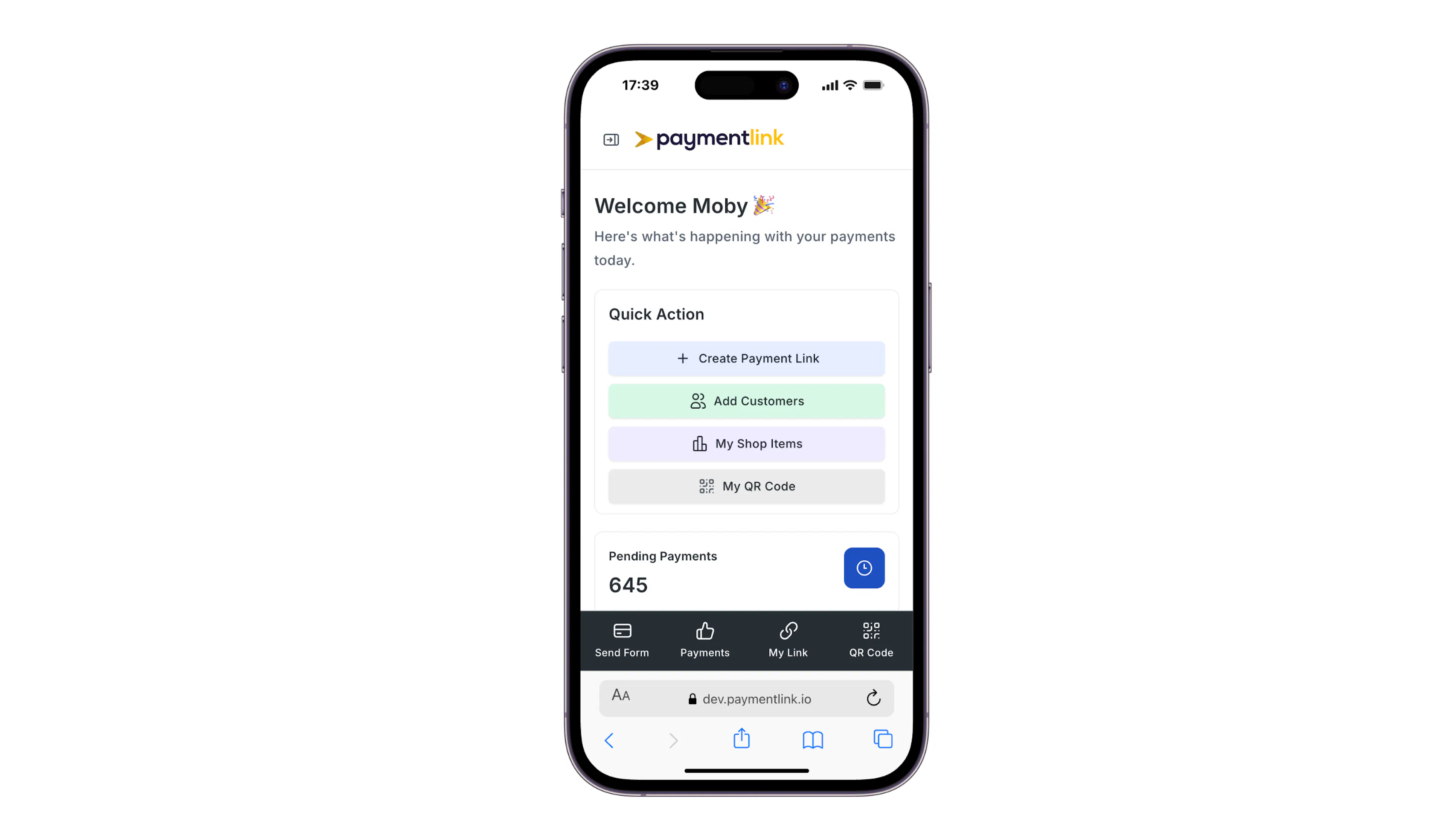
Click QR Code on the bottom menu - and show this to your customer.
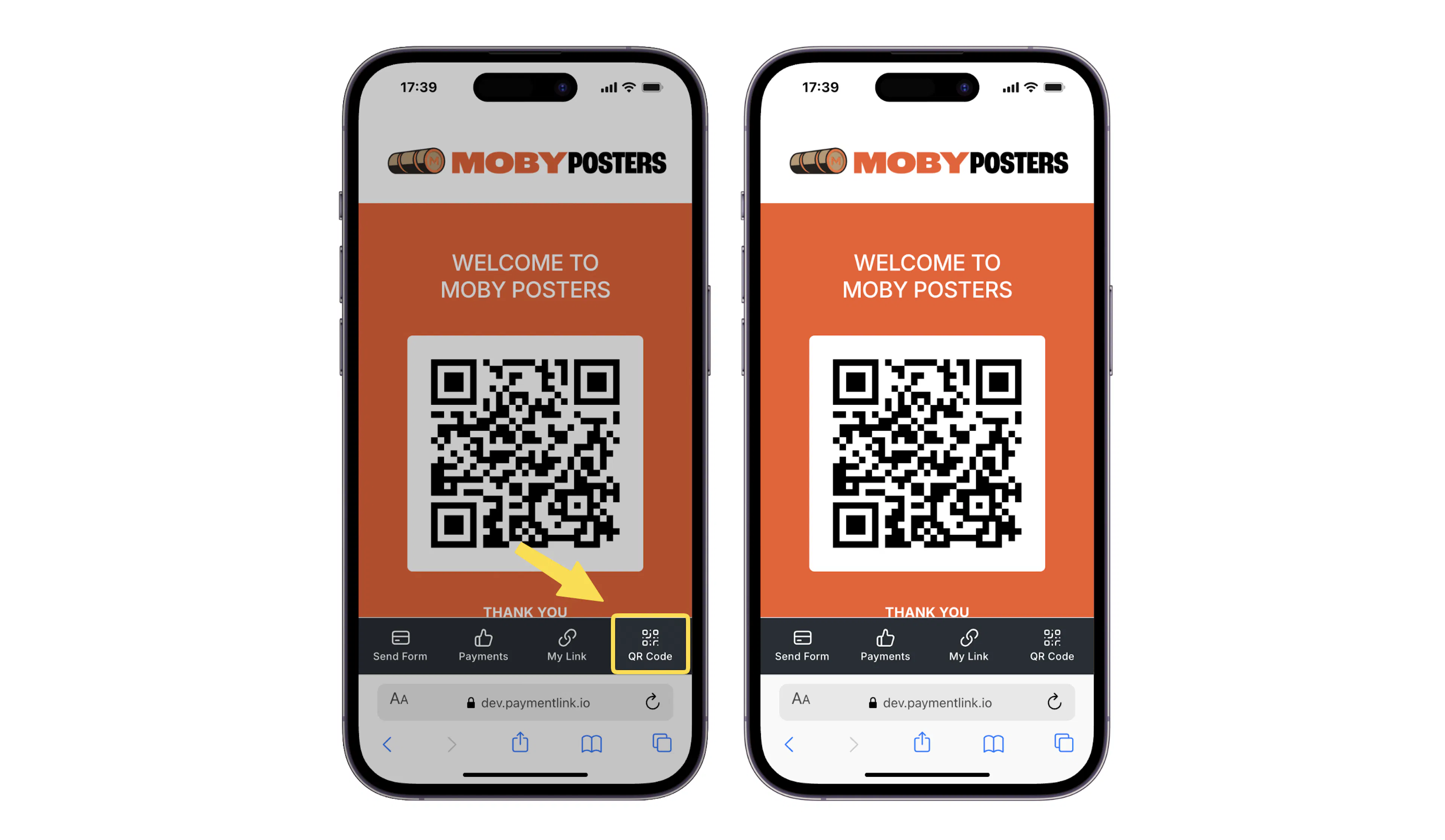
They will scan the QR code using the camera on their phone and they will see the below page. They simply enter their details and the amount you've given them and checkout on their phone.
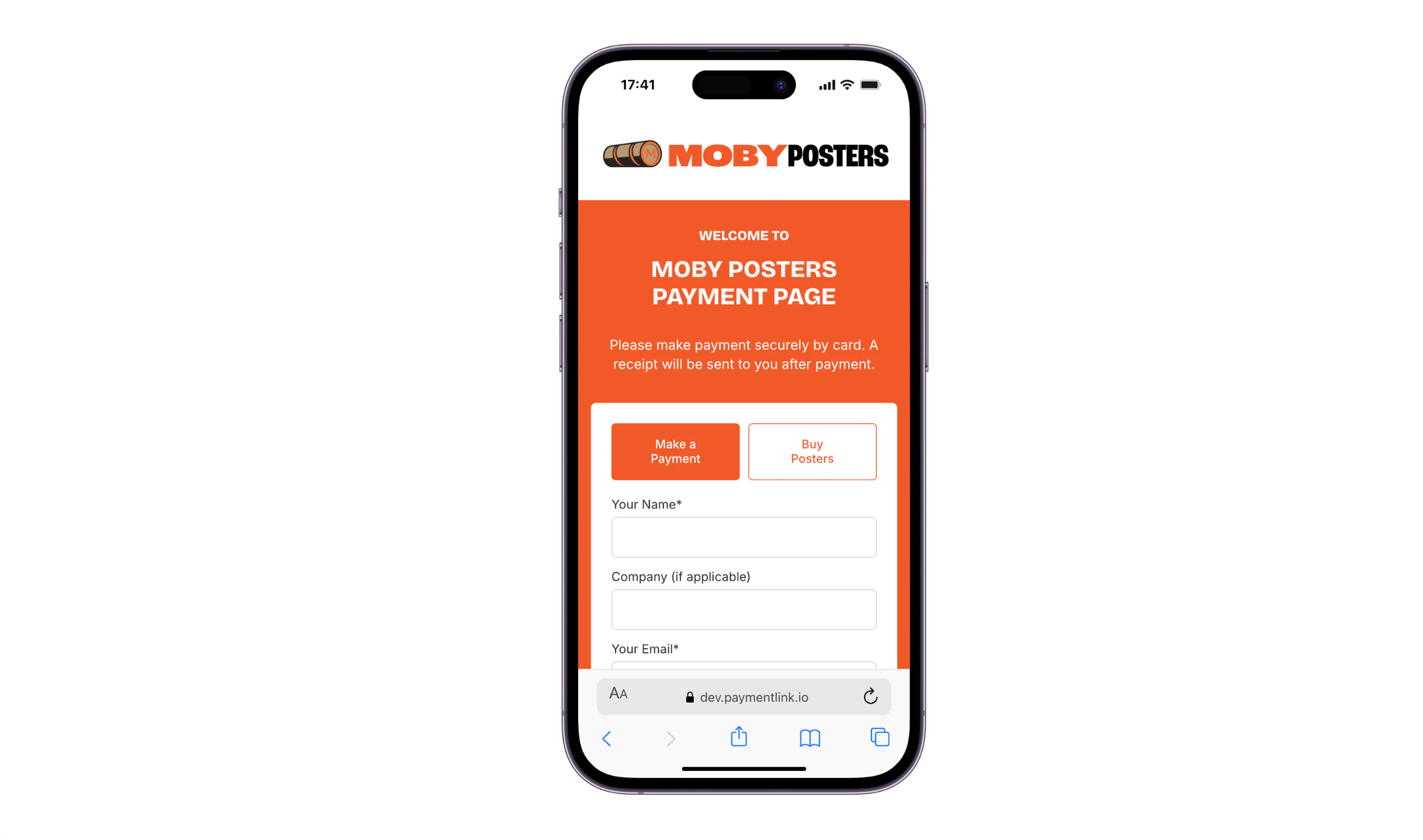
Once payment is made, ask them to show you the final confirmation screen to confirm payment has been completed.
They'll also receive an email as will you. You can see the new payment in your dashboard also by clicking here https://paymentlink.io/dashboard/paid-payments
For quick access take a screenshot of your QR code or save Payment Link to your home screen so it opens as an app. See instructions below.
Some OS versions may have different steps to what is below.
Go to the paymentlink.io/dashboard on your phone. Login with your username and password
iPhone
-
Open Safari and go to the paymentlink.io/dashboard on your phone.
-
Login with your username and password
-
Tap the Share button (a square with an upward arrow) at the bottom or top of the screen.
-
Scroll down and tap Add to Home Screen.
-
Name your new app icon and ensure the Open as Web App toggle is enabled (if you want it to open in its own clean window, offline, without an address bar).
-
Tap Add
Android
-
Open Google Chrome.
-
Go to the paymentlink.io/dashboard on your phone.
-
Login with your username and password
-
Tap the three dots in the top-right corner.
-
Select Add to Home screen.
-
Rename the shortcut if you like, then tap Add